

How GAIA Notifications Work
GAIA notifies you when something needs your attention. An email draft is ready to send. A reminder you set just fired. A background workflow finished. Each notification shows up in real time, and many include action buttons so you can respond without navigating away. There are four types of notifications:AI-Generated Actions
Email drafts, calendar events, and tasks that GAIA created on your behalf. These include action buttons so you can confirm, edit, or dismiss right from the notification.
Reminders
Time-based alerts you asked GAIA to set. They fire at the scheduled time and
often include follow-up actions like marking a task complete.
Workflow Updates
Status updates when a background workflow finishes or fails. Useful when
you’ve kicked off an automation and want to know when it’s done.
System Notifications
Account-level updates like a new integration being connected or a background job completing.
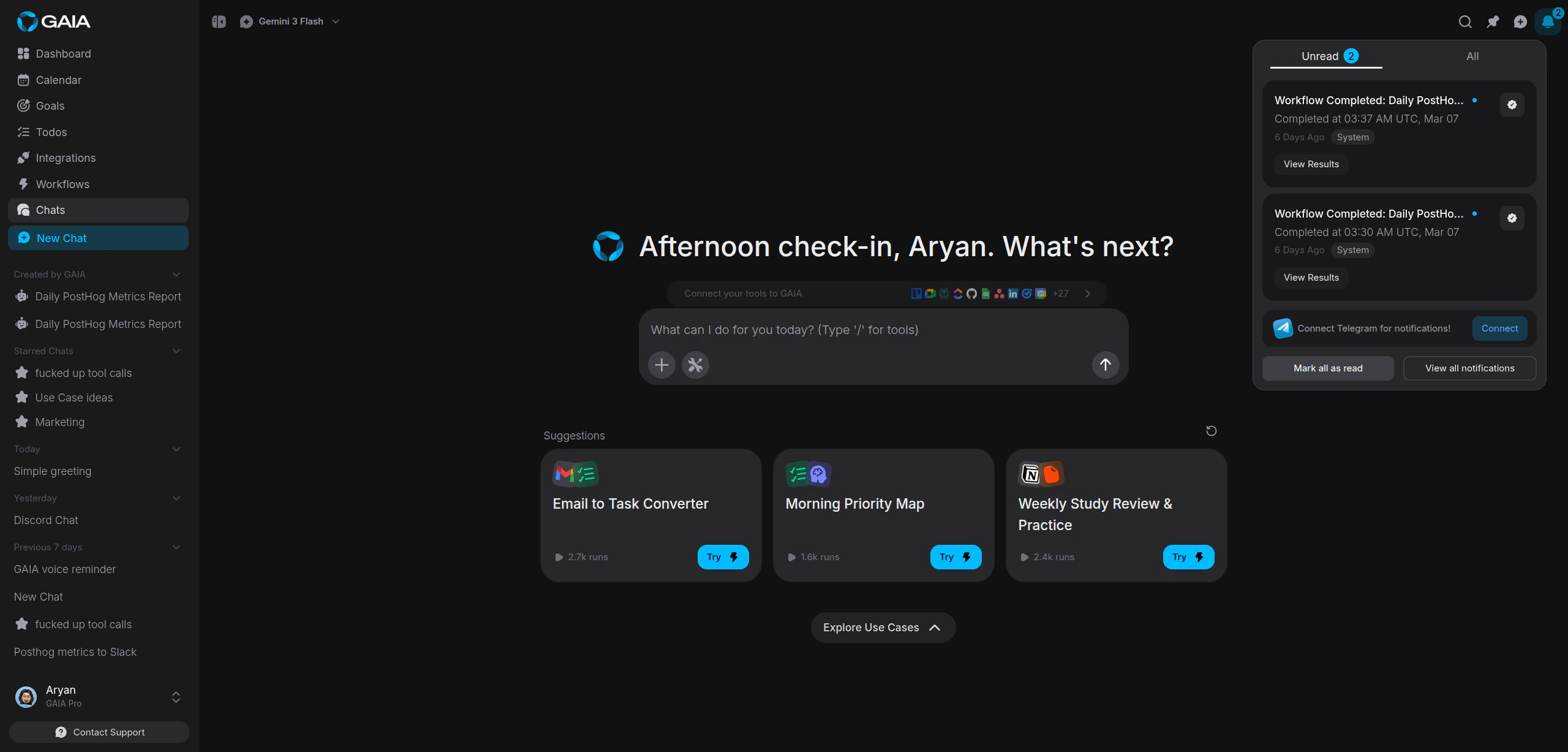
Notification Channels
GAIA can notify you across multiple channels at once. Each one can be toggled independently.| Channel | Where it appears | Enabled by default |
|---|---|---|
| In-app | Notification panel inside the GAIA web and mobile apps | Always on |
| Telegram | Direct message from the GAIA Telegram bot | Yes (requires linked account) |
| Discord | Direct message from the GAIA Discord bot | Yes (requires linked account) |
| Push (mobile) | Native push notification on your phone | Yes (after granting permission) |
In-app notifications are always on and can’t be turned off. They’re the
baseline — so you never miss something important even if other channels are
disabled.
Configure Channel Preferences
Open Notification Settings
Go to Settings > Notifications in the sidebar. You’ll see each notification channel listed with a toggle.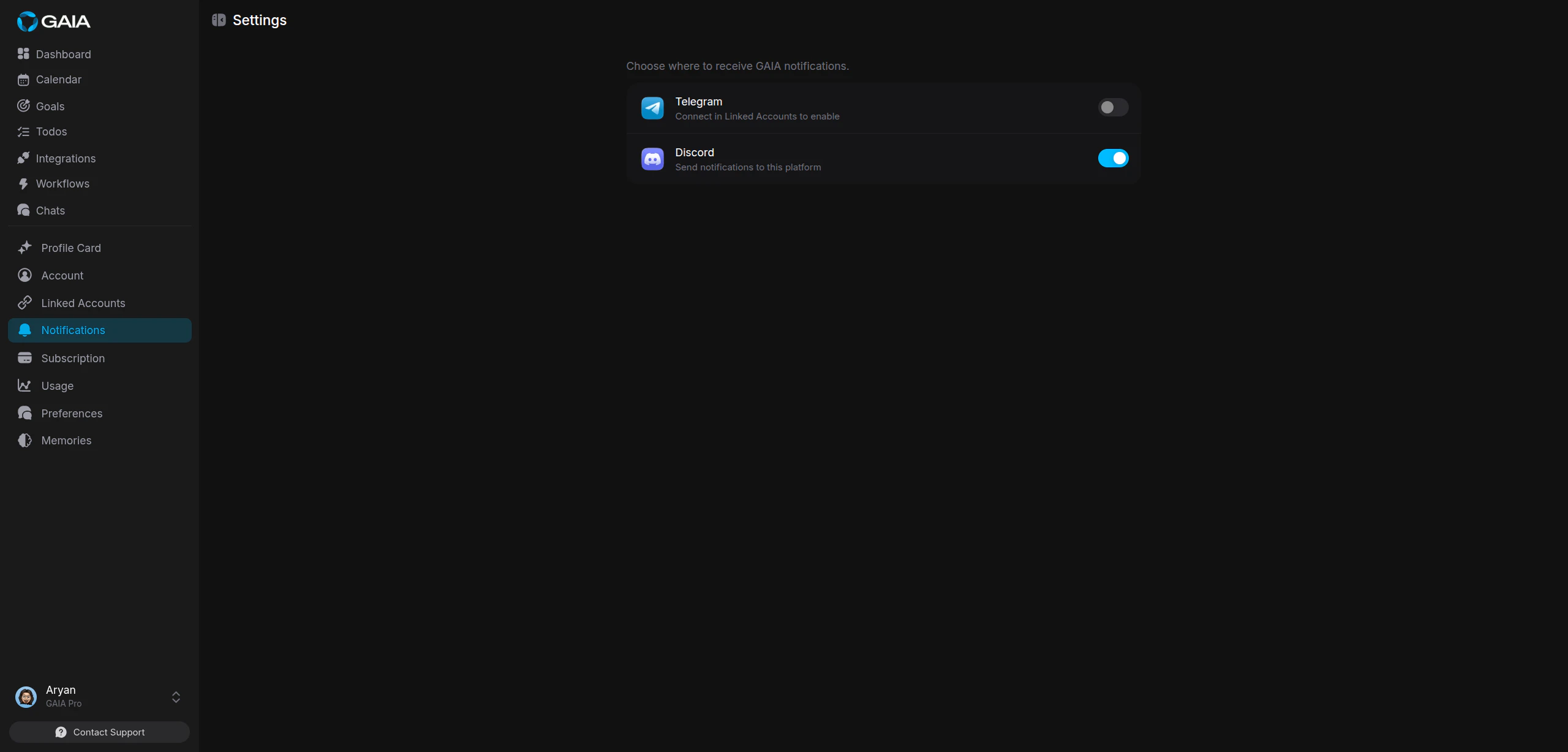
Toggle channels on or off
Flip the switch next to any platform to turn it on or off. Changes save automatically.Telegram and Discord toggles only appear after you’ve linked those accounts. If you see “Connect in Linked Accounts to enable,” go to Settings > Linked Accounts first.
Push Notifications on Mobile
The GAIA mobile app uses native push notifications via Expo. The first time you open the app, it asks for permission to send notifications.Enable push notifications
- Open the GAIA mobile app and sign in.
- Accept the notification permission prompt when it appears.
- Your device is automatically registered with GAIA’s notification service.
Managing devices
You can register up to 10 devices for push notifications. If you switch phones or want to stop notifications on a specific device, sign out of the GAIA app on that device. It unregisters automatically.Managing Notification Noise
A proactive assistant can generate a lot of notifications. Here’s how to stay on top of them without feeling buried.Use bulk actions
Open the notification panel and select multiple notifications to mark them read or archive them in one step. Much faster than handling them one by one.Act on notifications inline
Many notifications include action buttons — “Preview & Send” on an email draft, “View Task” on a new todo, “Confirm Event” on a calendar suggestion. Use these to handle things right from the notification instead of digging into the full feature.Archive what you’ve handled
After you act on a notification, archive it. Archived notifications are hidden from the default view but stay accessible if you need to look something up later.Notification Actions
GAIA notifications are interactive. Depending on what triggered them, you’ll see action buttons that let you respond directly:| Source | Available Actions |
|---|---|
| Email draft | Preview & Send (opens an editor so you can review and send the draft) |
| Calendar event | Confirm Event (creates the event on your calendar) |
| New task | View Task, Mark Complete |
| Reminder | Context-specific actions based on what the reminder is about |
| Workflow | More Details (takes you to the workflow or conversation) |
If an action fails, you’ll see an error message. Retry by going to the
relevant page (Todos, Calendar, etc.) and performing the action from there.